
Settings
The Settings screen (/settings) is where the deployment is configured at runtime —
most of it without touching .env or restarting. The whole screen is admin-only. A
live status poll keeps the connection badges fresh.
Tabs: Inverter, MQTT & Home Assistant, Tariff, Date & Time (any admin), plus Profiles, Users, and API Keys (admin).
Inverter
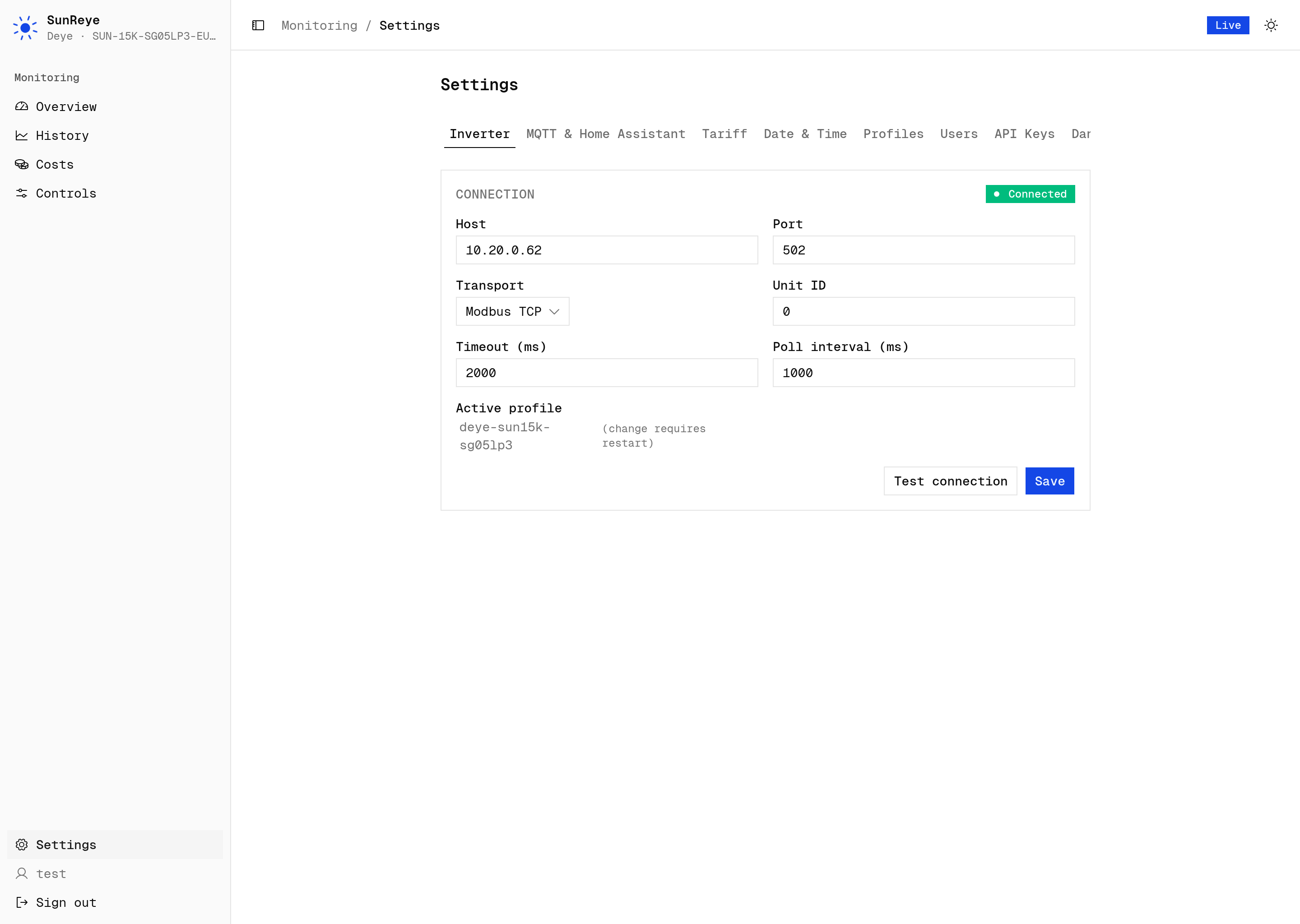
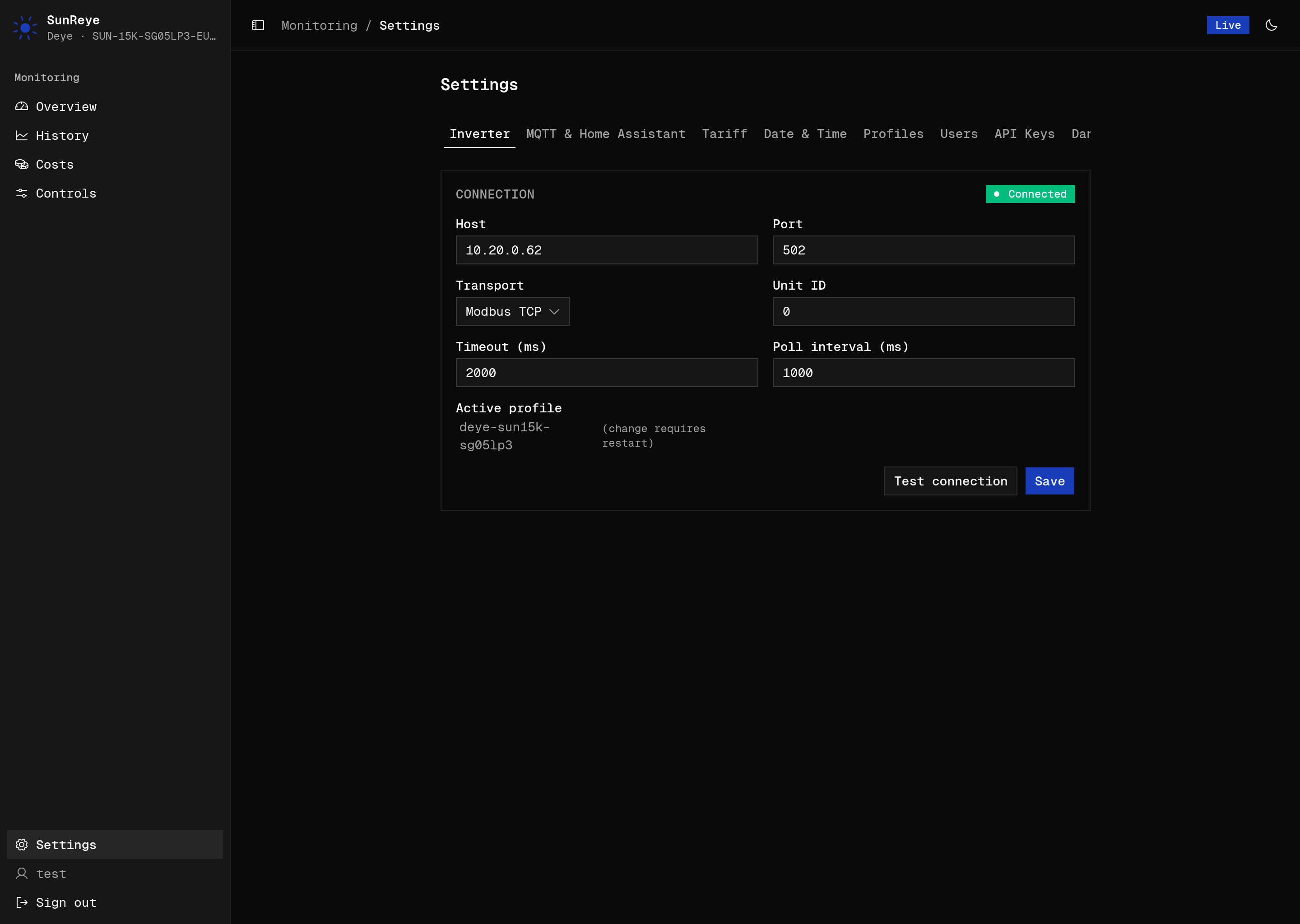
Section titled “Inverter”Configure the Modbus connection: host, port, transport (Modbus TCP or RTU-over-TCP), unit id, timeout, and poll interval. A status badge shows Connected / Disconnected / Simulated.
- Test connection captures a live snapshot and opens a table (metric / group / value) so you can sanity-check the mapping before saving.
- Save applies the change live — no restart.
- The active profile is shown here read-only; changing it lives on the Profiles tab and takes effect on restart.
- If simulation mode is on (
INVERTER_SIMULATE), a notice explains the settings are saved but unused.
MQTT & Home Assistant
Section titled “MQTT & Home Assistant”Configure the MQTT bridge: enable switch, broker URL, topic prefix, username, and a write-only password field. A Home Assistant discovery switch reveals the discovery prefix. A status badge shows Disabled / Connecting… / Connected, with a Test connection button. Saving applies live.
Tariff
Section titled “Tariff”Configure pricing for the Costs screen: currency, standing charge, feed-in rate, a default import price, and time-of-use bands (name, price, hour range, weekday selection). Add or remove bands and Save tariff.
Date & Time
Section titled “Date & Time”How timestamps render across the History charts and stepper. Two controls — a clock format (automatic/locale, 24-hour, or 12-hour) and a time zone (automatic, i.e. the viewer’s, or any IANA zone) — with a live preview of “now”. The setting is instance-wide: it applies to everyone using this instance, and only admins can change it.
Profiles
Section titled “Profiles”Manage inverter profiles (admin only), in three sections:
- Installed profiles — set active or remove, with built-in vs downloaded and version shown. A Restart required banner appears after activating or installing.
- Profile repositories — add/remove/enable git repo sources. Sources auto-save as you edit, with optimistic updates.
- Available profiles — Browse enabled repos. Profiles are grouped by manufacturer and, within that, by family (collapsible), and each row shows its source repo. Per profile: Download, or Update when the repo offers a semver-newer release.
At the top, an updates banner surfaces installed profiles with a newer version waiting — each with a one-click Update to vX. A background checker refreshes this every few hours, so you see updates without browsing.
See Distributing Profiles for the full flow.
Manage accounts (admin only): add a user (name, email, password, role) and edit or delete users in a table, including changing roles inline. See Users & Roles.
API Keys
Section titled “API Keys”Issue and revoke API keys for the REST API (admin only):
- Issue key — pick the owning user, name the key, and optionally set an expiry (30 days / 90 days / 1 year / never). On create, the full key is shown once in a dialog with a copy button — store it then, as only a short prefix is kept afterwards.
- Keys table — filter by user; each row shows name, owner, prefix, created/expiry dates.
Revoke deletes a key immediately; requests using it then return
401.
Keys are stored hashed and work alongside the static API_KEYS
environment variable. See
REST API → Authentication for how they’re presented
on requests.